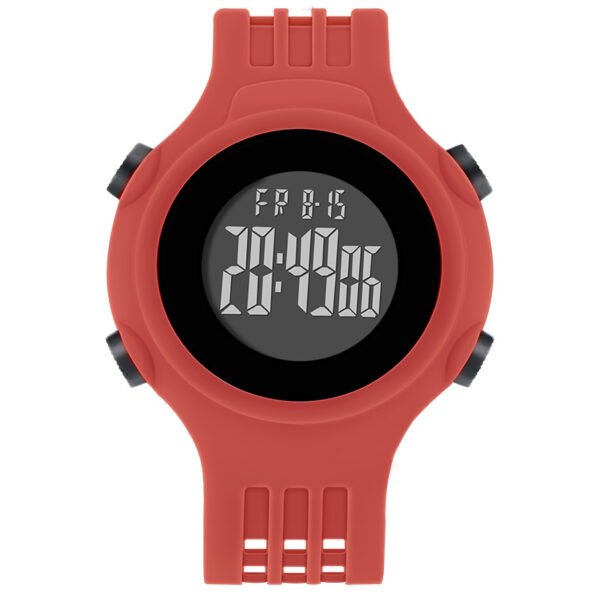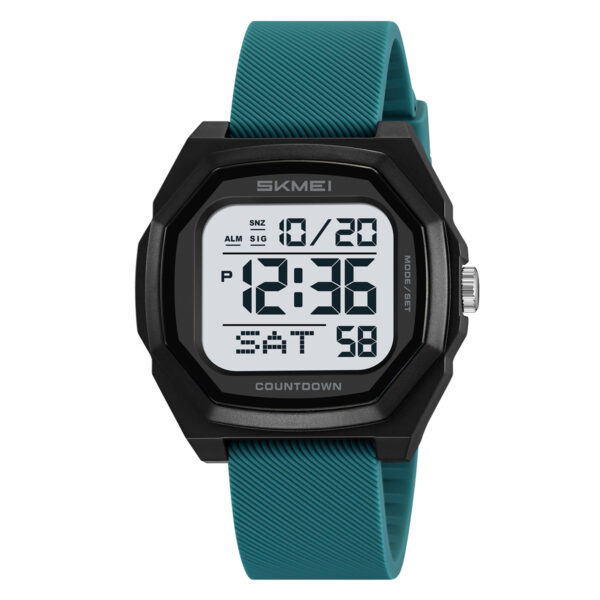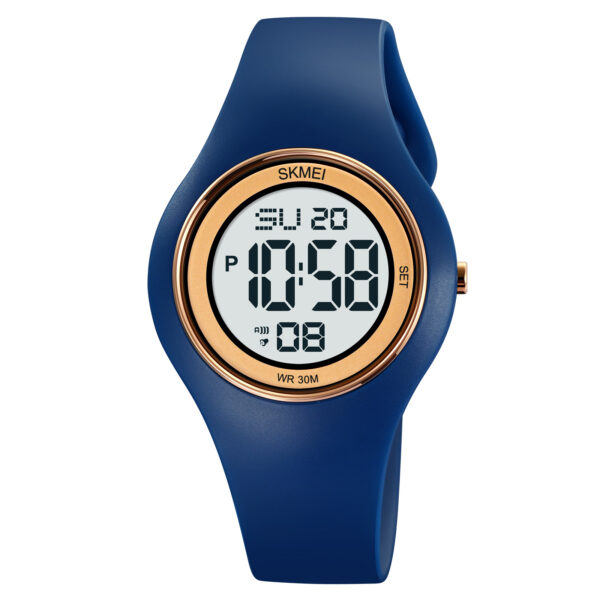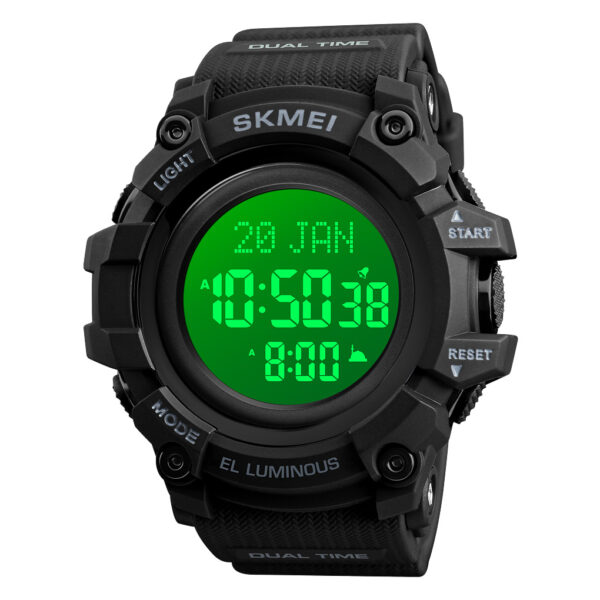
SKMEI watches are known for their durable design, sporty aesthetics, and user-friendly features, making them a popular choice for outdoor enthusiasts and everyday wear. If you just bought one or need to reset it, I’ve got you covered.
In this guide, I’ll walk you through how to set up a SKMEI watch step by step, everything from basic time and date setting to alarms, the stopwatch, and other functions. Whether you have a digital, analog, or sports model, these practical tips work for most common watches. Let’s dive in!
SKMEI Watch Setup Basics
Before you start, take a moment to understand the basic SKMEI watch setup logic used across most models. SKMEI usually keeps the same button roles on digital, analog‑digital, and sport lines, so once you learn this pattern, future setups become much easier.
✅️ 1. Understand Your Watch Buttons
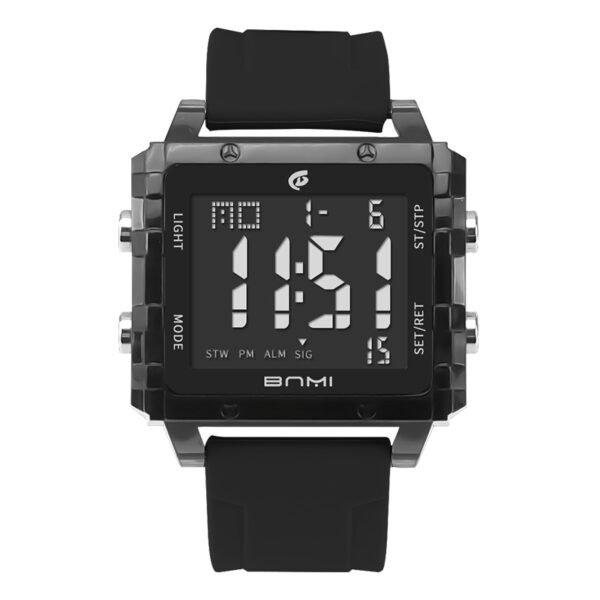
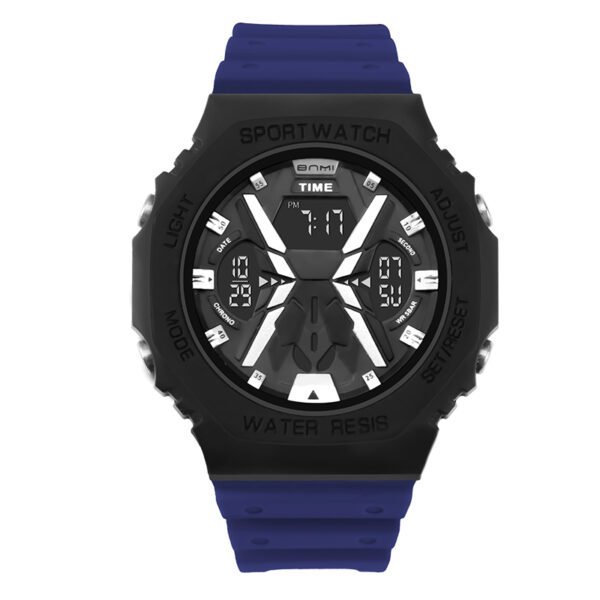
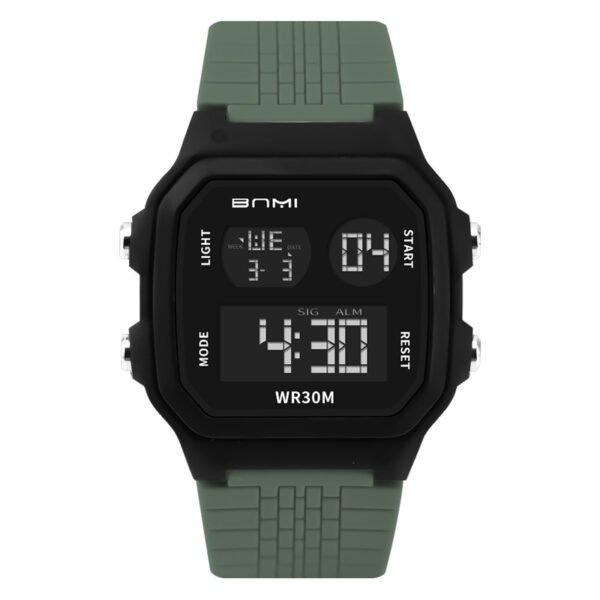
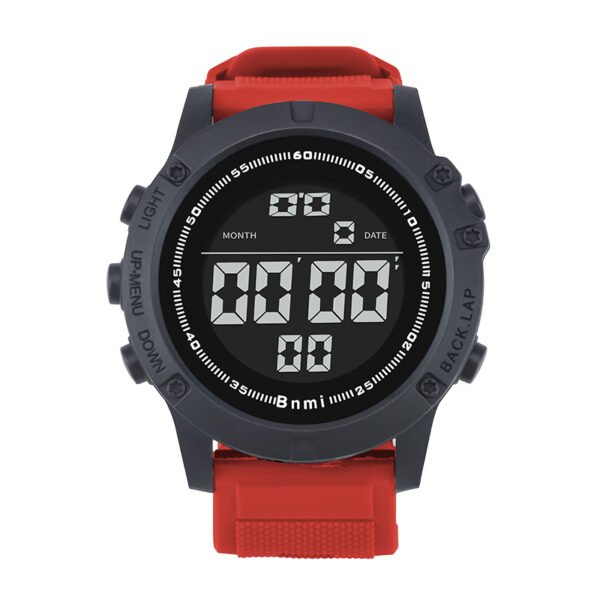
Most SKMEI wrist watches have 3–4 buttons, typically labeled as follows (positions may vary by model):
- Mode Button (M): Switche between functions (time, alarm, stopwatch, countdown).
- Adjust Button (ADJ/SET): Enters setting mode and saves changes.
- Up/Down Buttons (↑/↓): Navigate menus and adjust values.
- Light Button (LIGHT): Illuminates the display (not relevant for settings but useful for visibility).
Tip: Check the bezel or printed icons next to each button, because some SKMEI sport models use symbols instead of text.
✅️ 2. How To Set The Time And Date On A SKMEI Watch
Step 1: Enter Time Setting Mode
- Hold the Adjust / Set button for about 3–5 seconds until the seconds begin to flash or the screen shows a “SET” indicator.
- If nothing flashes, try pressing the Mode button once and then long‑press Adjust again.
Step 2: Reset Or Adjust The Seconds (Optional)
- When the seconds digits are flashing, press the Up button to reset them to 00 (or manually adjust, depending on your model).
- Press Adjust once to move from seconds to the hour setting.
Step 3: Set Hour And Minute
- Use the Up / Down buttons to choose the correct hour; some SKMEI watches allow you to choose 12‑hour or 24‑hour format here.
- Press Adjust again to switch to the minute field, then set the correct minutes with the Up / Down buttons.
Step 4: Set Date, Month And Year
- Continue pressing Adjust to cycle through month, day/date, and year (if your model supports year setting).
- Make sure the 12H/24H time format is correct; on some models you need to hold the Up or Down button while in the hour setting to toggle it.
Step 5: Save And Exit Settings
- After you have adjusted all necessary values, press and hold the Adjust button again for about 3 seconds to exit the setting mode.
- The display will stop flashing and your new time and date settings will now be active.
✅️ 3. How To Set The Alarm And Use Stopwatch On A SKMEI Watch
Alarm Mode (Usually Labeled “ALM” in Mode)
- Press the Mode button repeatedly until you see “ALM” or the alarm time on the display.
- Long‑press Adjust to enter alarm setting mode; the alarm hour should start flashing.
- Use Up / Down to set the alarm hour and minute, pressing Adjust to move between them.
- After setting the alarm, press Adjust again to toggle the alarm on/off; a small alarm icon will appear on the screen when it is active.
- Some SKMEI watches support multiple alarms; in that case, use the Mode button to switch between different alarm numbers (AL1, AL2, etc.).
Stopwatch Mode (“STW” Mode)
- Switch to Stopwatch mode via the Mode Button.
- Press the Up Button to start/stop the timer and hold it to reset.
✅️ 4. Customize The Display And Daily Use Settings
- Backlight duration: Some SKMEI digital wrist watches let you adjust how long the backlight stays on; this is usually controlled through a special setting menu or by pressing the Light button in sequence.
- Weekday display: After setting the correct date, check whether the weekday on the screen matches the actual day; if not, repeat the date setting steps.
If your watch has extra functions such as dual time or countdown timer, you will normally access and set them using the same Mode and Adjust pattern described above.
✅️ 5. Troubleshooting Common Issues
- Display Not Responding: Ensure the watch is charged (if it’s a digital model with a rechargeable battery) or replace the battery if it’s a quartz model.
- Wrong Time Format: Double-check the 12/24-hour setting in the time configuration menu.
- Alarm Not Ringing: Confirm the alarm is enabled (look for the alarm icon) and the time is set correctly.
If you still have issues, consult the specific user manual for your SKMEI model, because button labels and available functions can vary slightly from watch to watch.
Recommended SKMEI Watches For Easy Setup 🔥🔥🔥
Ready for a new look? Here are the three most popular SKMEI models right now:
- SKMEI 2596 (The Sporty Tracker): A classic digital watch with a built-in pedometer to track your steps. Perfect for daily fitness. 🔗 🔗
- SKMEI 2601 (The Smartwatch): A high-tech touchscreen watch. It handles Bluetooth calls and notifications directly from your phone. 🔗🔗
- SKMEI 9276 (The Luxury Diver): A sleek, stainless steel quartz watch. Perfect for a premium, professional look at a great price. 🔗🔗
About ITSKMEI
ITSKMEI is a professional original SKMEI watches distributor, we specialize in providing authentic and high-quality watches, from rugged sports watches to elegant digital designs at factory-direct prices. Known for reliability and wide selection, ITSKMEI is the trusted choice for shoppers who want genuine SKMEI durability without the markup.
💬 Conclusion
Setting up SKMEI watch is straightforward once you familiarize yourself with the button functions and menu structure. Whether you’re configuring the time for the first time or resetting alarms, following these steps will ensure your watch stays accurate and tailored to your needs. Always refer to your model’s user manual for specific instructions, as button labels and features may vary slightly.
Got more questions about your SKMEI watch? Leave a comment below, and we’ll help you out!